TV playback
Put the routine on your TV. Keep control on your phone.
Flexor supports a larger-screen routine experience in different ways on each platform: AirPlay Screen Mirroring from iPhone and Google Cast from Android. Your phone remains the controller for pausing, moving between exercises, and finishing the session.
iPhone
Use AirPlay Screen Mirroring with an Apple TV or compatible display.
Android
Use Google Cast with compatible Chromecast, Google TV, or Cast-enabled devices.
Phone controls
Pause, resume, move through the routine, and finish from your phone.
Same Wi-Fi
Keep the phone and receiving device on the same local network.
The setup depends on your phone
On iPhone, start Screen Mirroring from Control Centre and choose an Apple TV or AirPlay-compatible display. Flexor detects the external display and presents a TV-optimised routine view while the iPhone remains available for controls.
On Android, use the Cast option in Flexor to discover a compatible Chromecast, Google TV, or Cast-enabled device. Android may ask for Nearby Devices or related local-network permission before devices can be discovered.
What appears during a routine
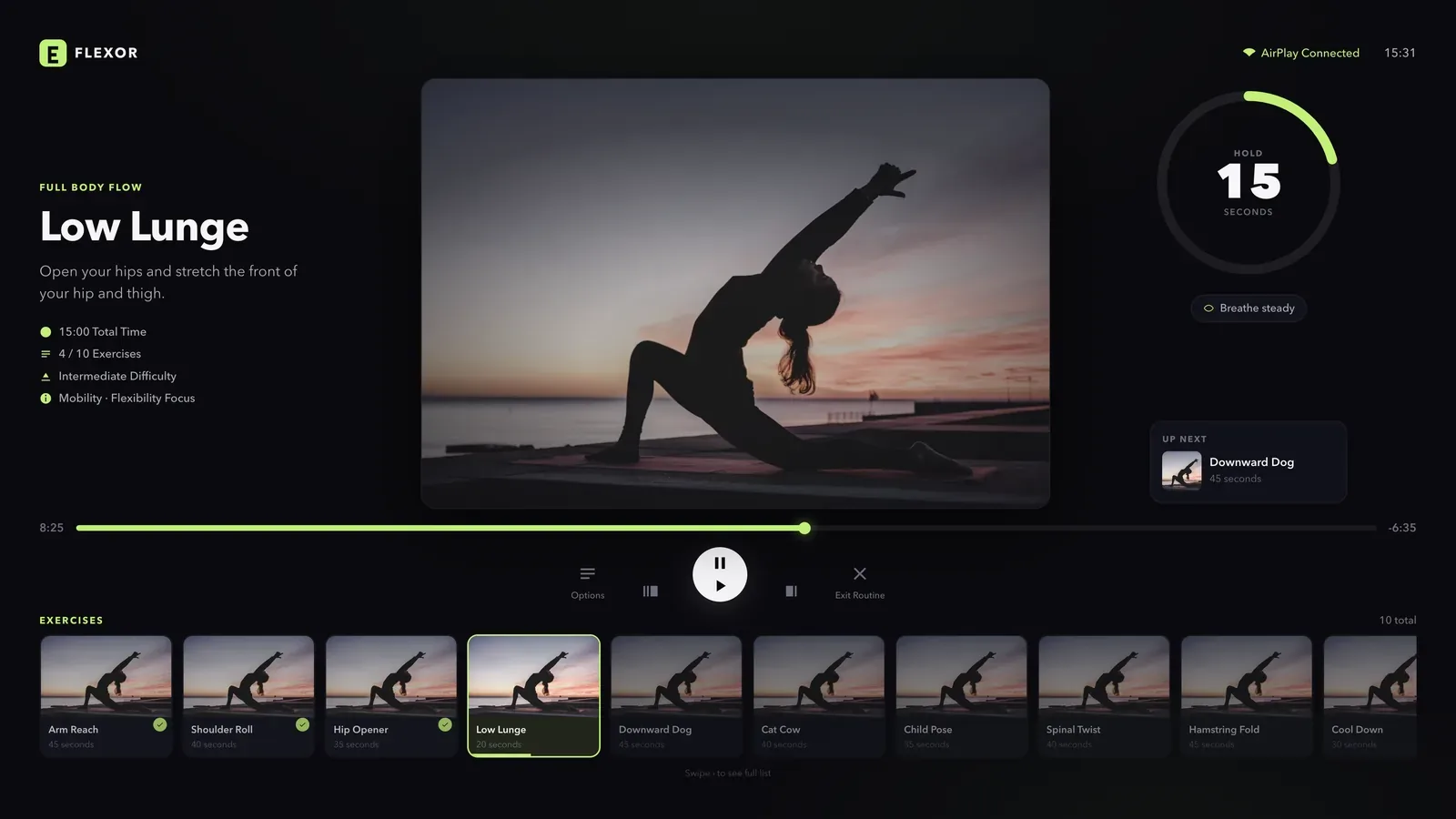
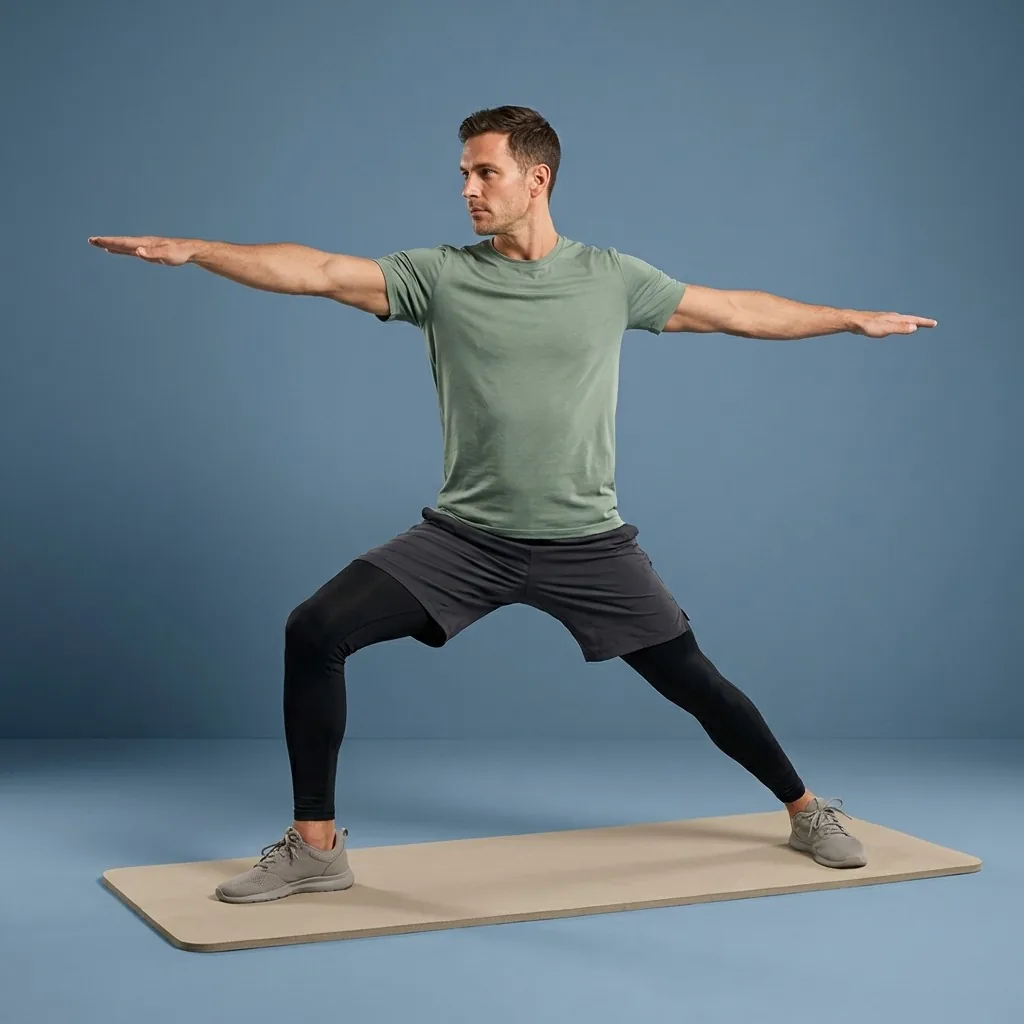
The larger-screen experience can show the routine name, current exercise media, exercise timer, progress, the next movement, pause state, rest or side-switch guidance, and completion or connection messages.
Availability depends on the phone platform, app version, receiving device, network, and permissions. Flexor does not claim support for every television or receiver.
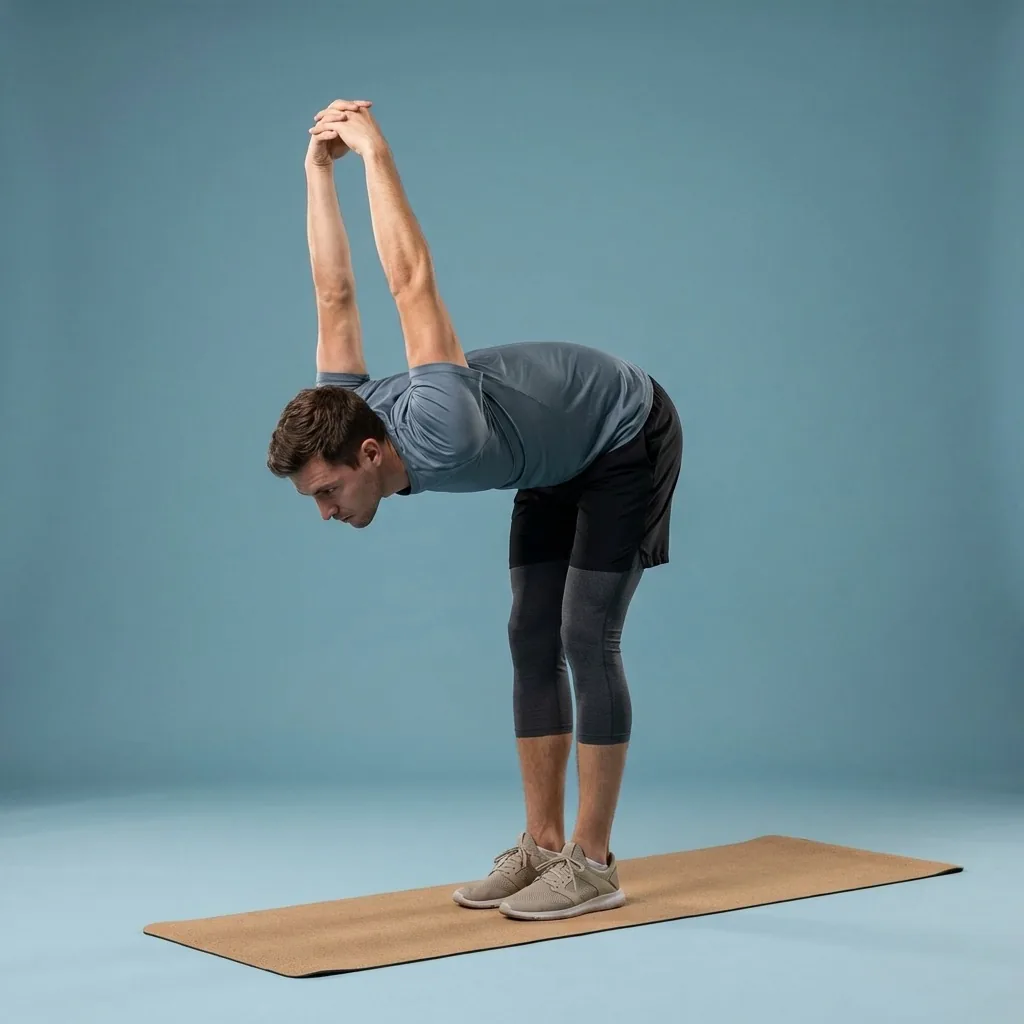
In Flexor: Guided stretching sequences with clear shape and timing.
Follow along on a larger screen.
Keep your phone as the controller while the routine plays on TV.
Connection and privacy basics
Keep the phone and receiving device on the same trusted Wi-Fi network. If a device is missing, confirm that both devices are connected to the same network, grant the requested discovery permission, and restart the receiving device or app before trying again.
Only start playback on a display you recognise and control. Disconnect or stop mirroring when the routine is finished, especially on a shared network or shared television.
Set up the larger screen
Connect in five steps
-
Confirm that the phone and compatible receiving device are on the same Wi-Fi network.
-
On iPhone, open Control Centre and choose Screen Mirroring. On Android, open the Cast option inside Flexor.
-
Select the Apple TV, AirPlay-compatible display, Chromecast, Google TV, or Cast-enabled device you intend to use.
-
Start a routine and use the phone to pause, resume, move between exercises, or finish.
-
Stop mirroring or disconnect the Cast session when you are done.
AirPlay on iPhone and Google Cast on Android
Both options provide a larger-screen routine view, but discovery and connection follow the conventions of each phone platform.
| Capability | iPhone | Android |
|---|---|---|
| Connection method | AirPlay Screen Mirroring | Google Cast inside Flexor |
| Typical receivers | Apple TV or AirPlay-compatible display | Chromecast, Google TV, or Cast-enabled device |
| Start from | iPhone Control Centre | The Cast option in Flexor |
| Routine controls | Remain on the iPhone | Remain on the Android phone |
| Network | Same Wi-Fi network | Same Wi-Fi network; discovery permission may be required |
Sources and further reading
These independent sources support the general guidance on this page. They do not endorse Flexor.
Quick facts
- Feature type
- Larger-screen routine playback
- iPhone
- AirPlay Screen Mirroring
- Android
- Google Cast
- Controls
- Stay on your phone
- Network
- Same Wi-Fi as the receiver
Get a routine onto your TV
-
Join the same Wi-Fi
Put your phone and the receiving device on the same trusted network.
-
Open the right connection
On iPhone use Screen Mirroring in Control Centre; on Android use Cast inside Flexor.
-
Pick your display
Choose your Apple TV, AirPlay display, Chromecast, Google TV, or Cast device.
-
Start and control from your phone
Begin a routine and pause, move between exercises, or finish from the phone.
Where to start
You use an iPhone
Start AirPlay Screen Mirroring from Control Centre.
You use an Android phone
Open the Cast option inside Flexor.
Your device is not appearing
Confirm the same Wi-Fi, allow local-network permission, and wake the receiver.
Safety and limits
- Only start playback on a display you recognise and control.
- Disconnect or stop mirroring when a shared session is finished.
- Move within a comfortable range and stop if a movement causes pain or concerning symptoms.
Flexor is general fitness and wellness content and does not assess your movement on any screen.
Read the full wellness disclaimerRelated routines
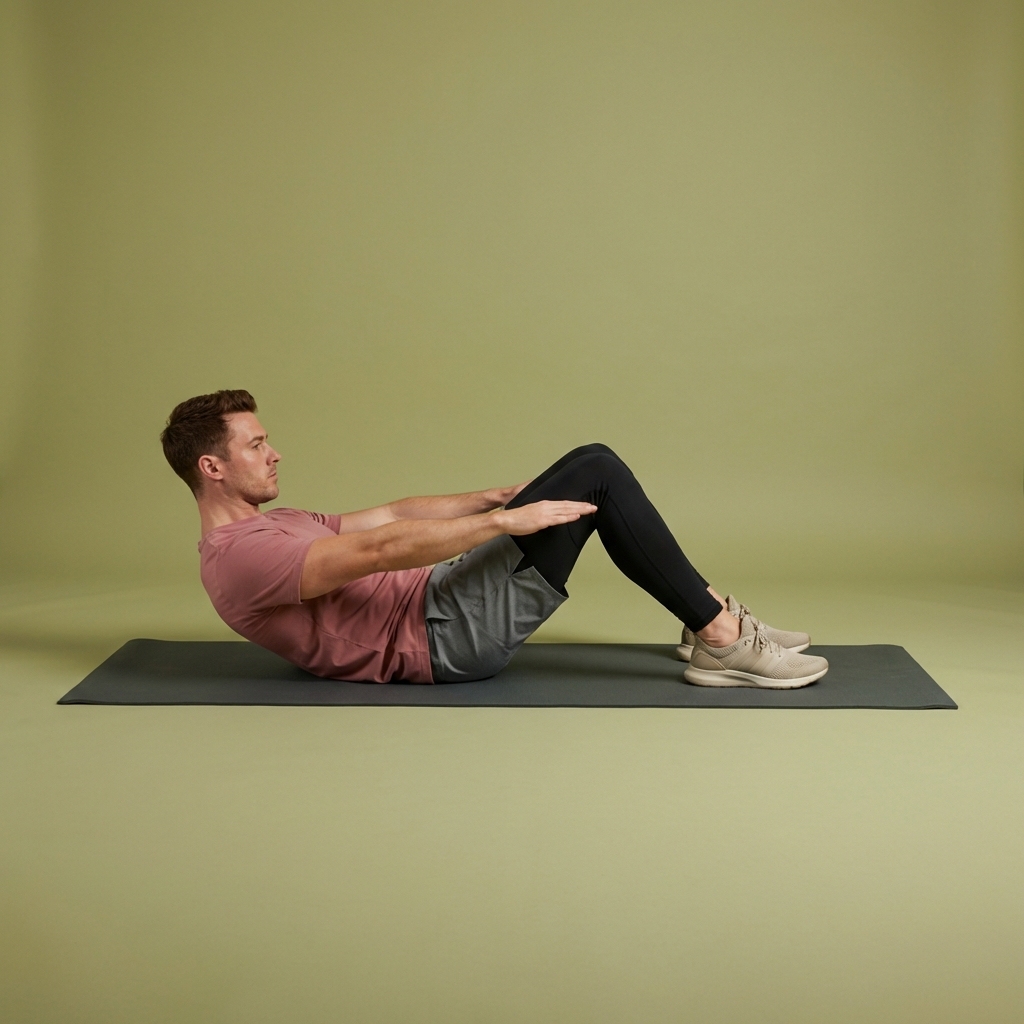
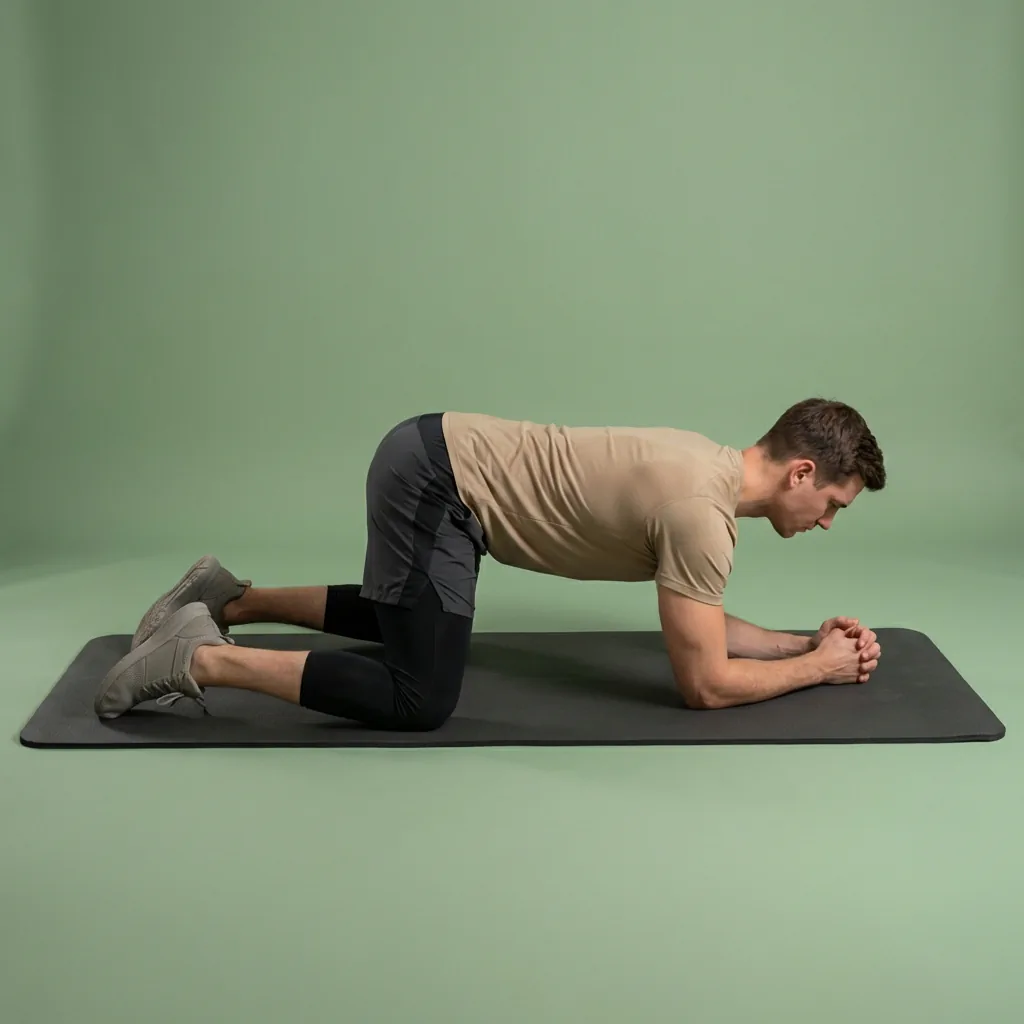
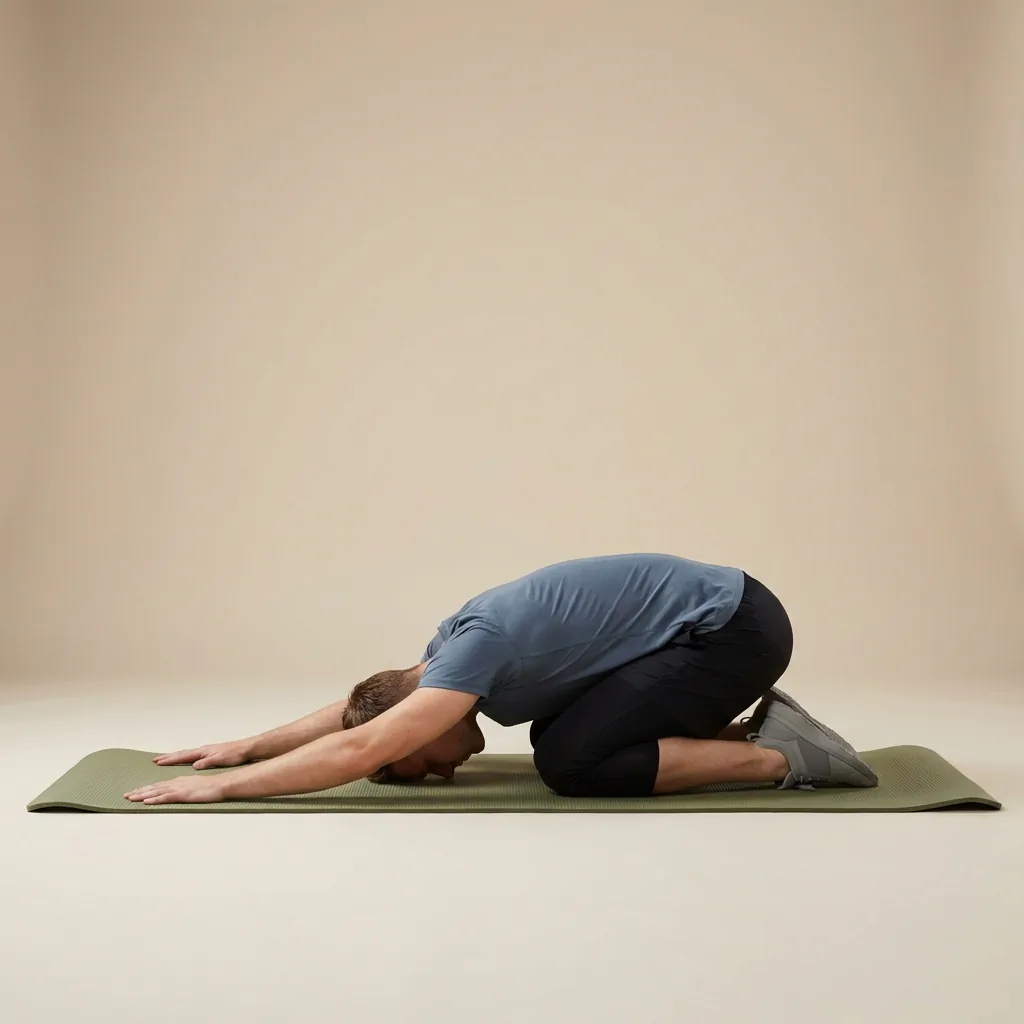
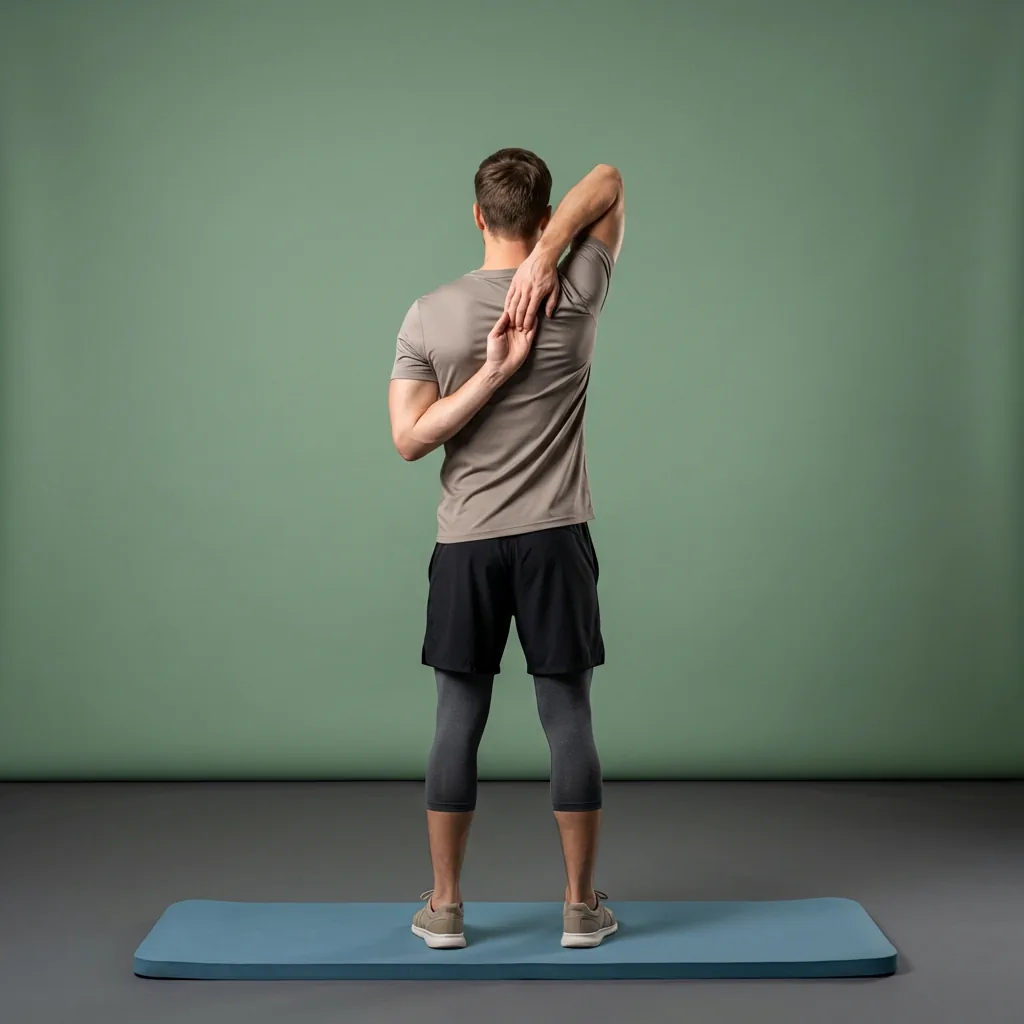
Browse guided Flexor sessions that match this page, then open any routine for steps and cues.

































Common questions
Frequently asked questions
Can I use Google Cast from an iPhone in Flexor?
No. Flexor uses AirPlay Screen Mirroring for the supported iPhone larger-screen experience, while Google Cast is the supported route from Android. On iPhone, open Screen Mirroring from Control Centre and select an Apple TV or compatible AirPlay display on the same network. The iPhone remains the routine controller while Flexor presents a TV-optimised view on the external display.
Does Flexor have a native Apple TV app?
No. The supported iPhone experience uses AirPlay Screen Mirroring and an external-display routine view; it is not a separate native Apple TV app. The Flexor session still runs on the phone. This distinction matters when searching the Apple TV App Store or troubleshooting: begin the routine on the iPhone, connect the display, and retain controls on the phone.
Why can’t Flexor find my TV or Cast device?
First confirm that the phone and receiving device are connected to the same Wi-Fi network and that the television, streaming device, or receiver supports the method used by your phone. Allow local-network or Nearby Devices permission when requested, make sure the receiver is awake and available, and reopen the connection picker. Guest networks, network isolation, disabled permissions, or an incompatible receiver can prevent discovery.
Can I control the routine from my phone?
Yes. The phone remains the controller during both the supported iPhone and Android larger-screen experiences. Depending on the current routine state, you can pause or resume, move to the previous or next exercise, respond to rest or side-switch stages, follow progress, and finish the session from the phone. The TV view is designed to make the current movement and timing easier to see.
Keep exploring
More guides on stretching, mobility, routines, and Flexor features.
Flexor features
Everything the Flexor app does, in one place.
See how the Flexor app works: AI routines, personalised daily recommendations, a custom library, plans, progress, remind...
Read more Follow-along, start to finish
Guided stretching that leads each session—not just a list of moves.
Follow timed stretching sessions with clear video demonstrations, spoken guidance and smooth exercise transitions at hom...
Read more Routine chooser
Choose a stretching or mobility routine by what you need now.
Choose a Flexor routine for mornings, desk breaks, workout warm-ups, cool-downs, flexibility, mobility, recovery, and ev...
Read more